
 Français
 Español
 Italiano
 Deutsch
 Português
 Türkçe
 Nederlands



Automatic quality
Turn it on in the Options of a channel that exists in FHD, HD and SD: LumenTV steps down a notch when the picture stops to load, then goes back up as soon as the network allows.
The IPTV player for Google TV. Live TV, your movies and your series, with your own subscription.
Free, for Google TV, Android TV and Fire TV, and also on Android phones and tablets. And on computers, Windows and Mac. Version .
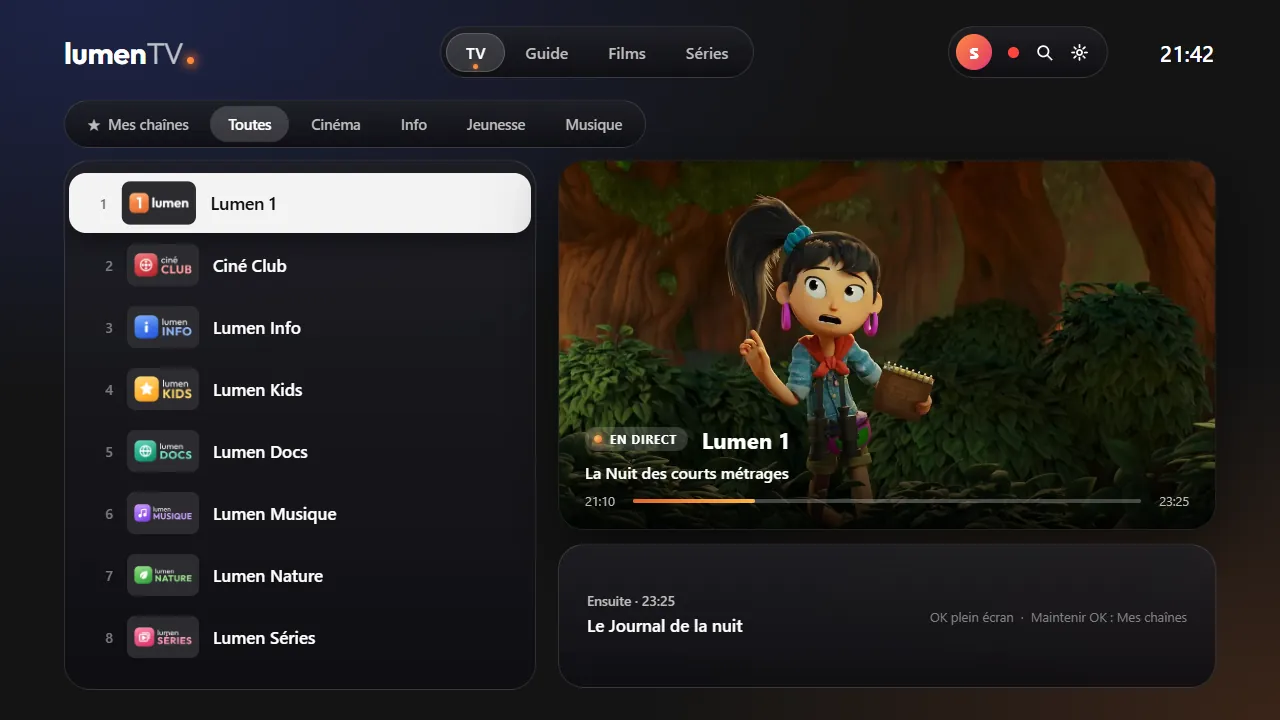
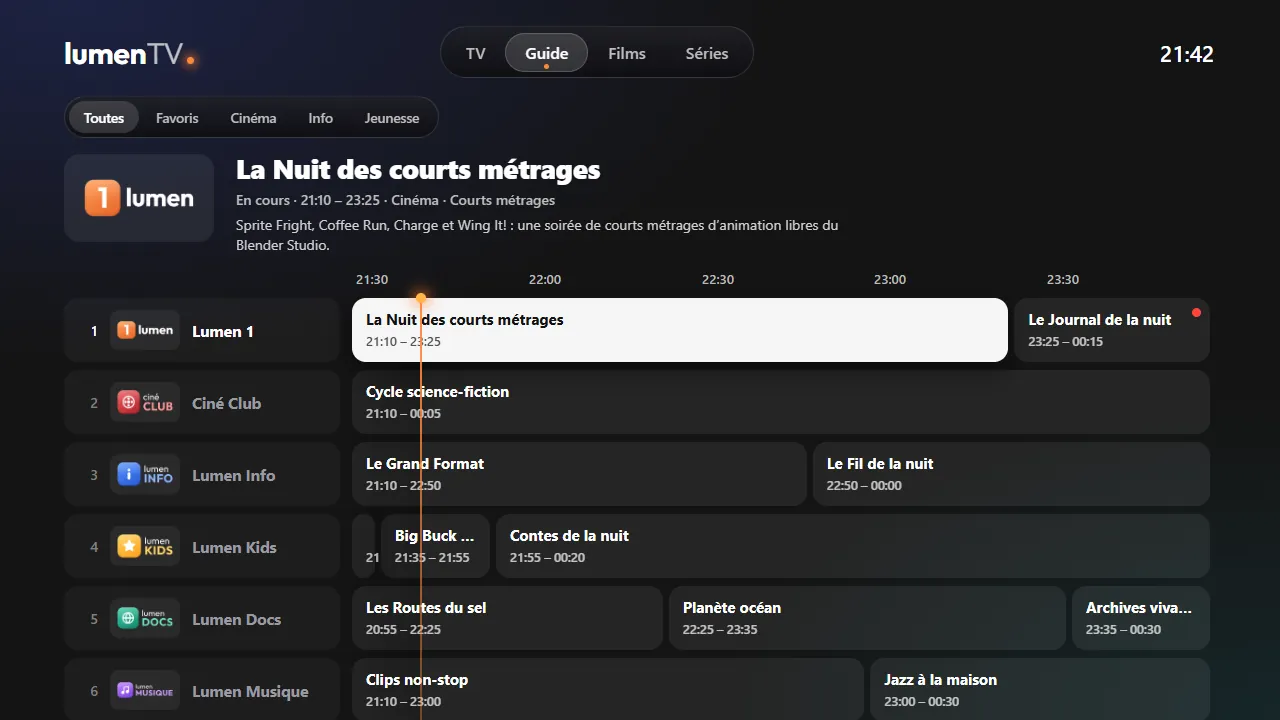
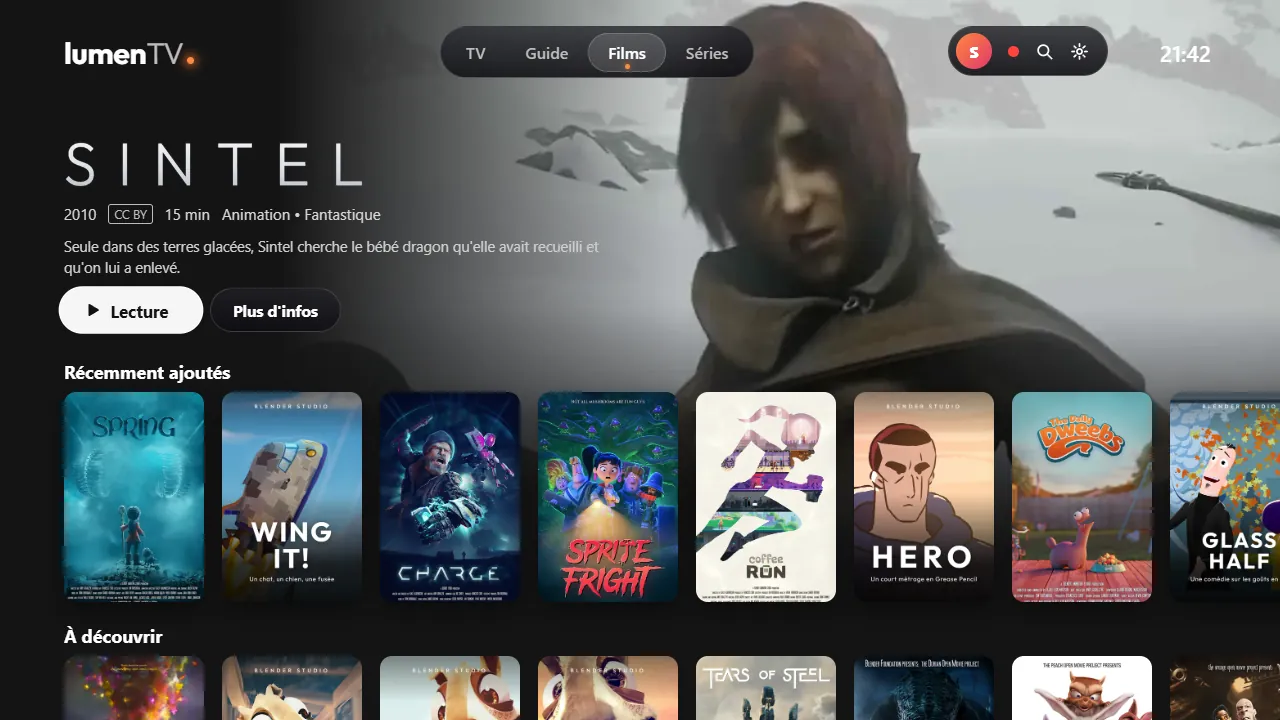
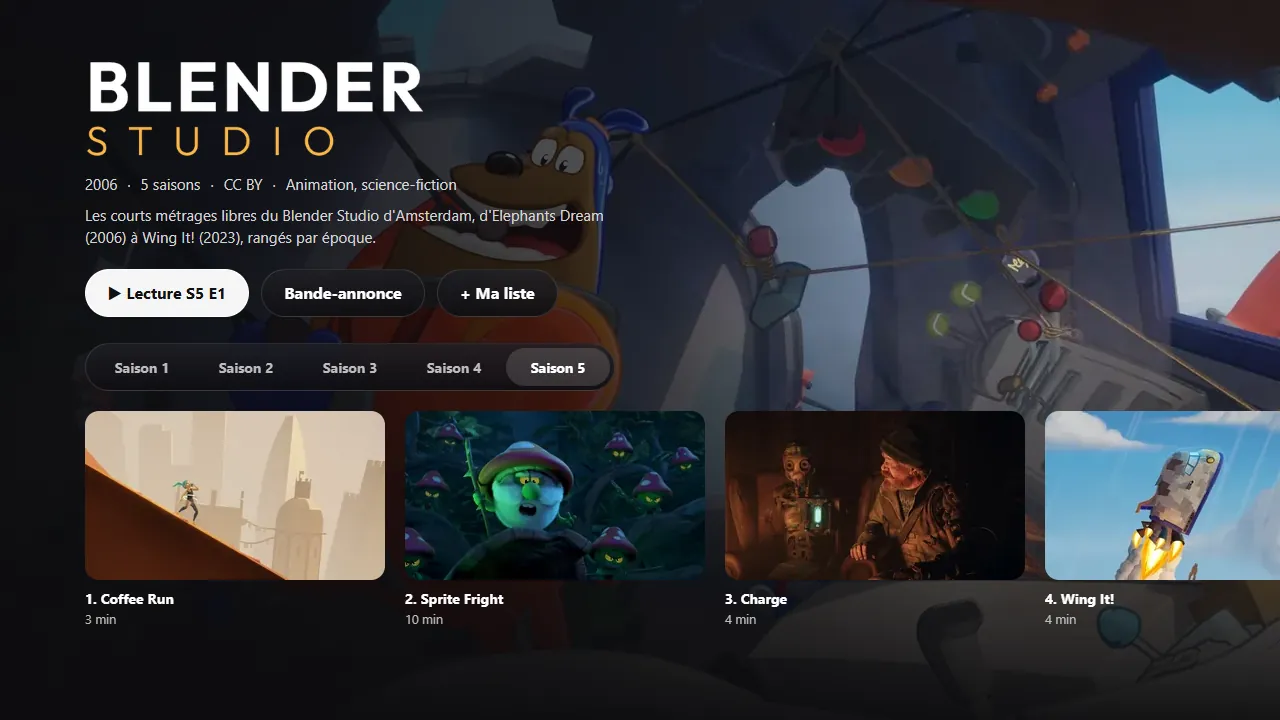
Movies big, with their poster and their backdrop.
The channels, movies and series shown here are examples. What you see in LumenTV depends on your IPTV provider. An example of a legal source: with a Freebox and the TV option, add the playlist http://mafreebox.freebox.fr/ (it only works on your Freebox's network).
LumenTV takes care of the details: the right version, the right quality for your network, the right refresh rate for your screen. You just watch.
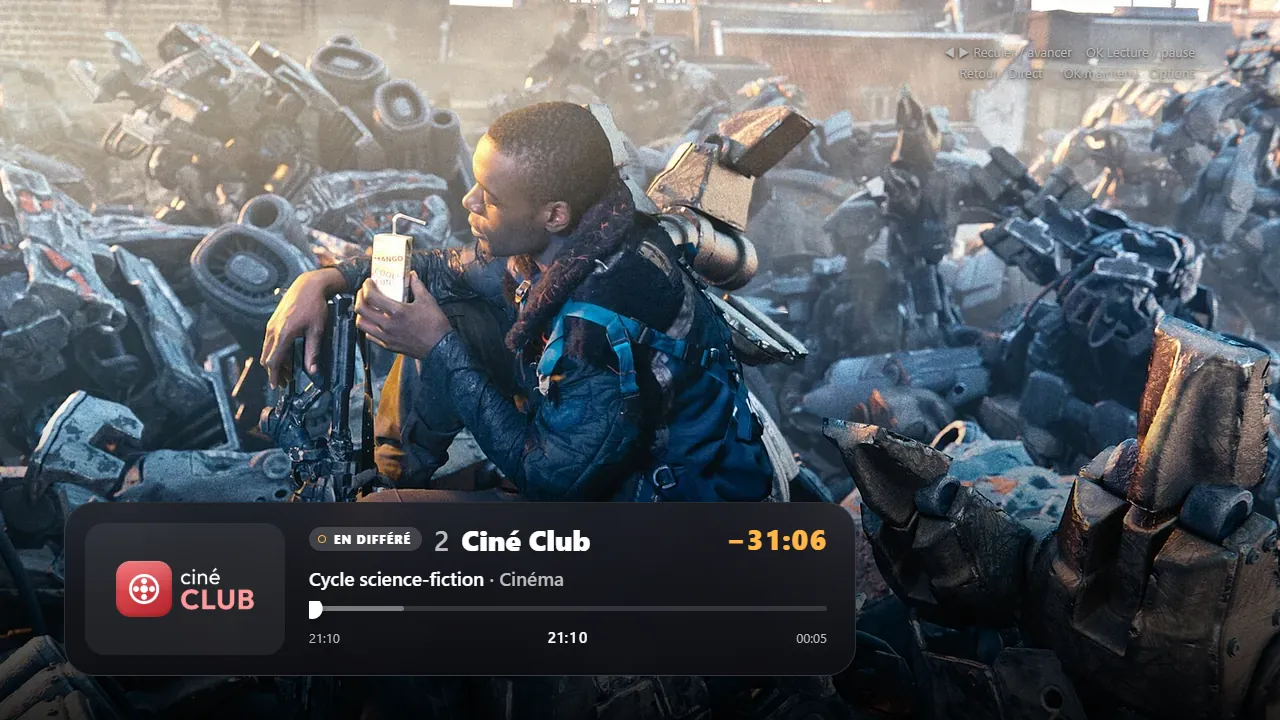
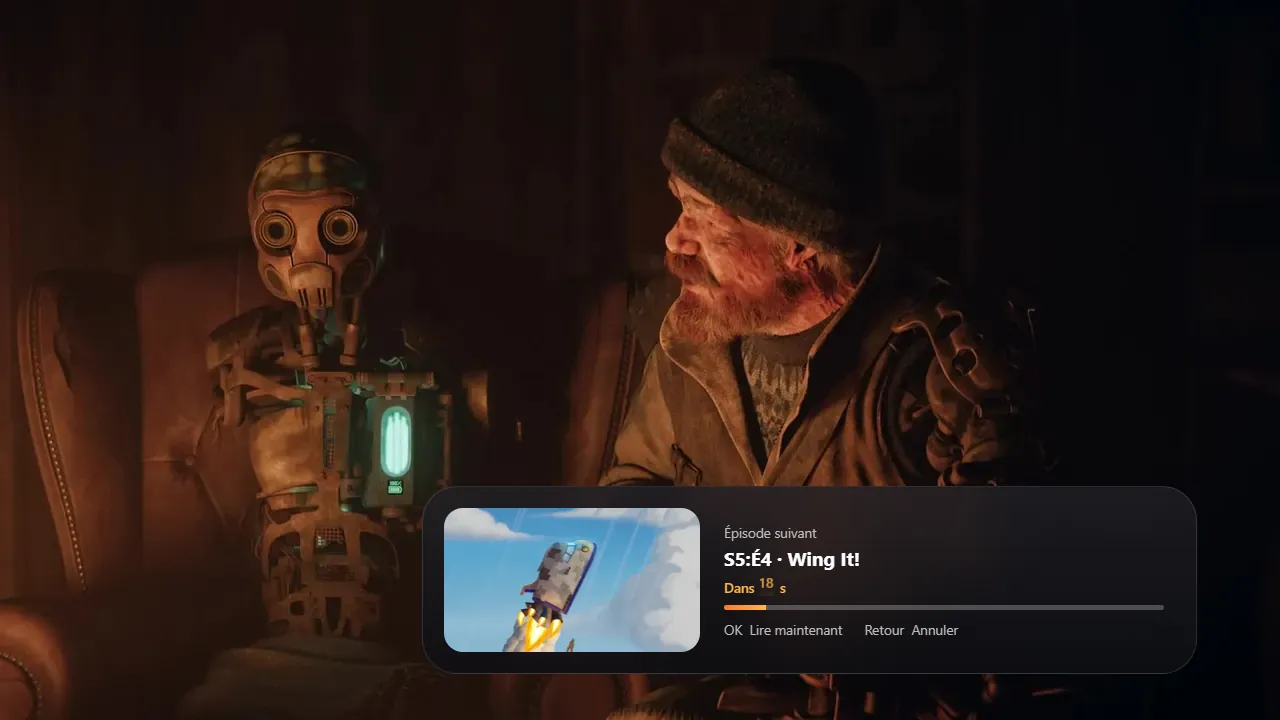
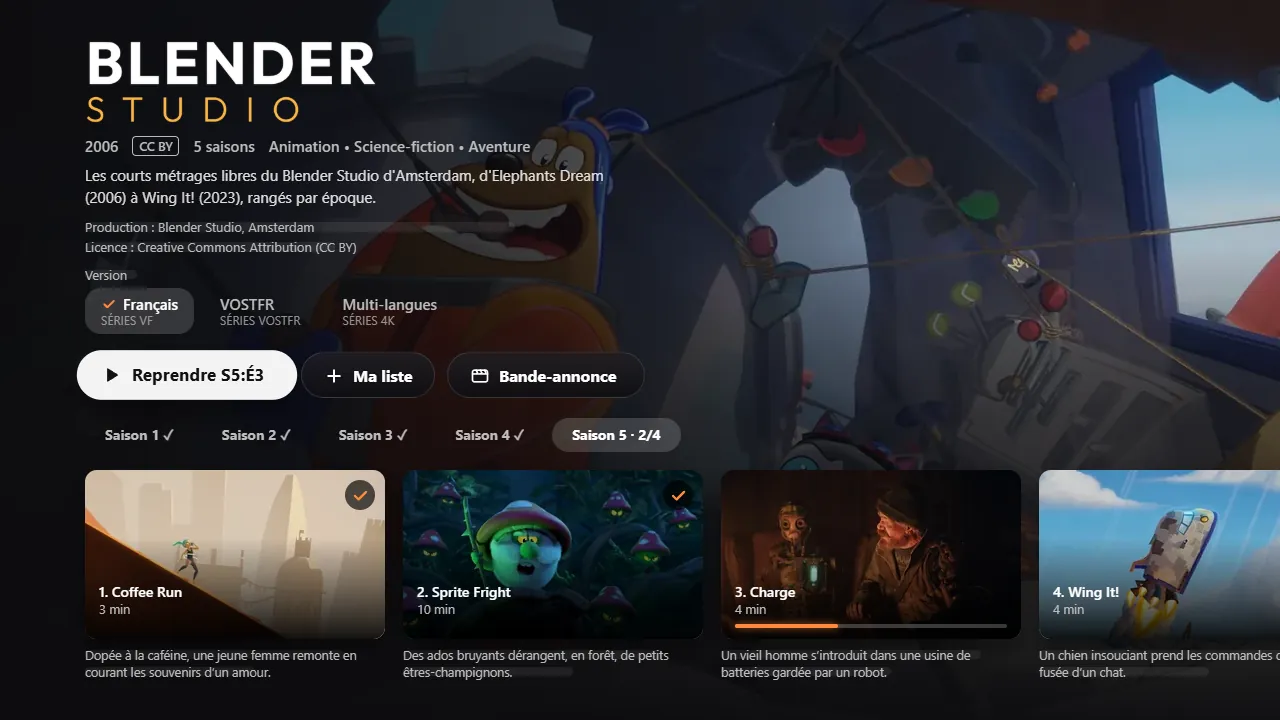
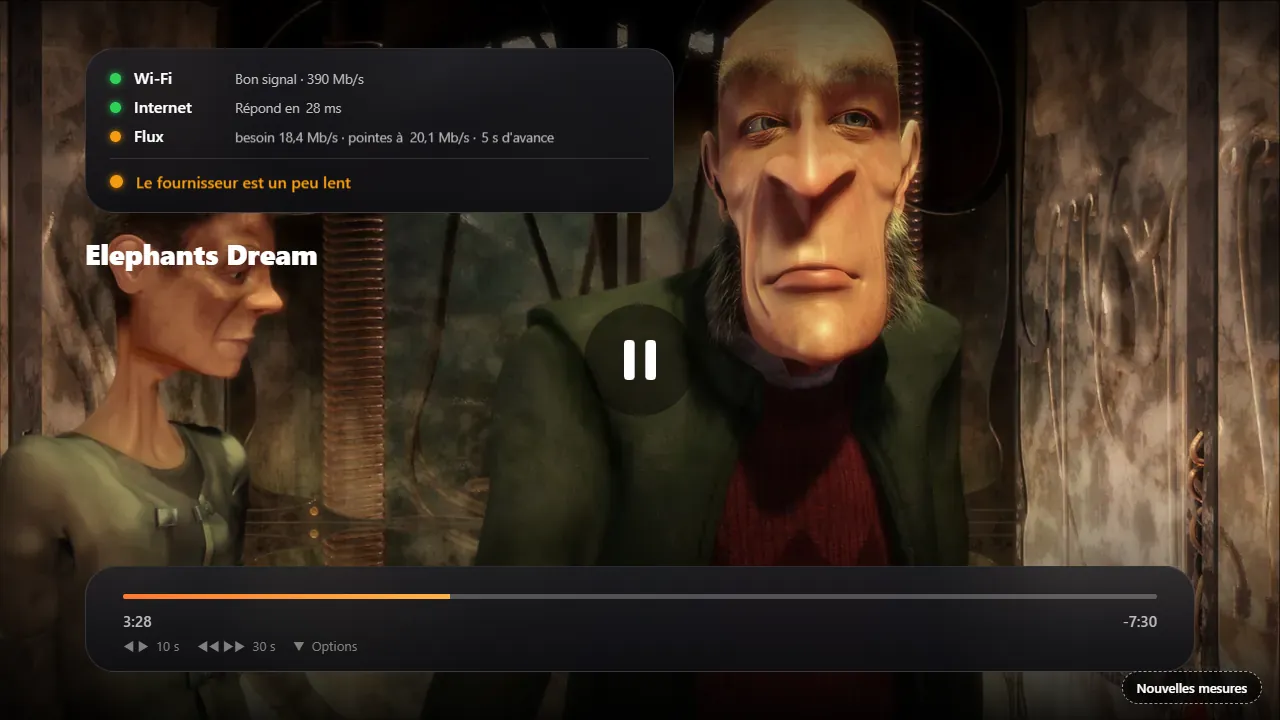
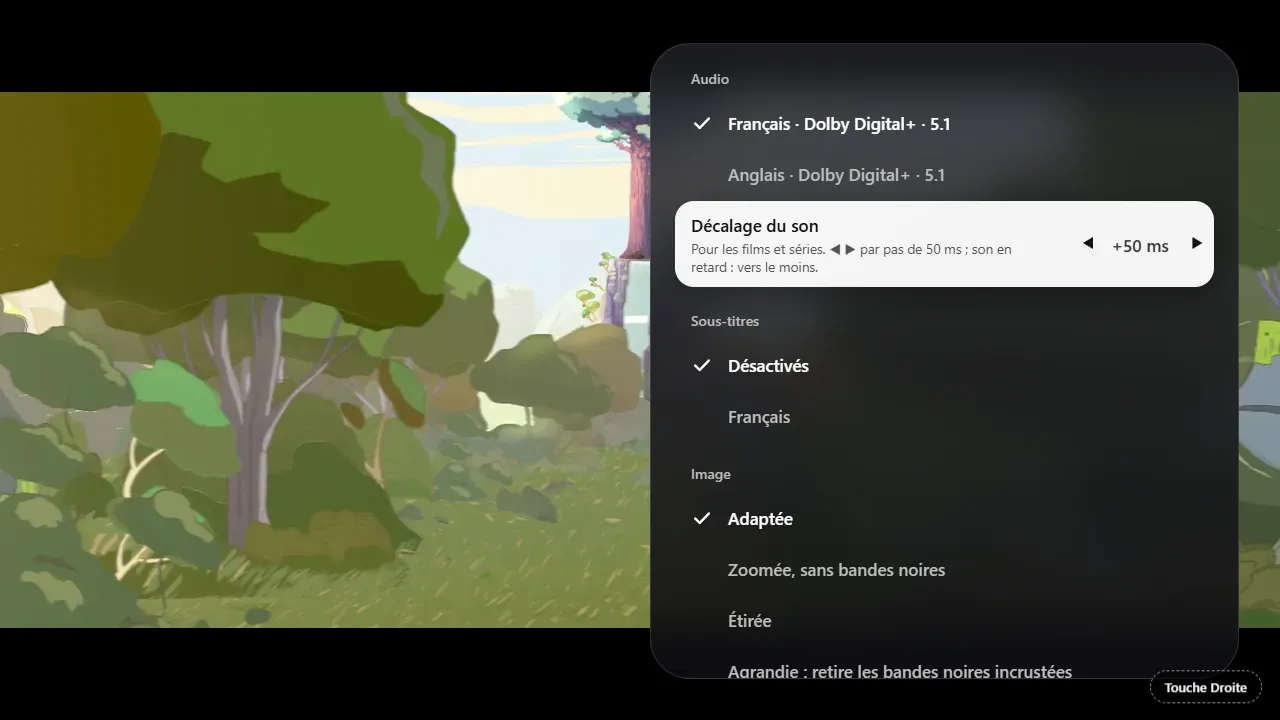
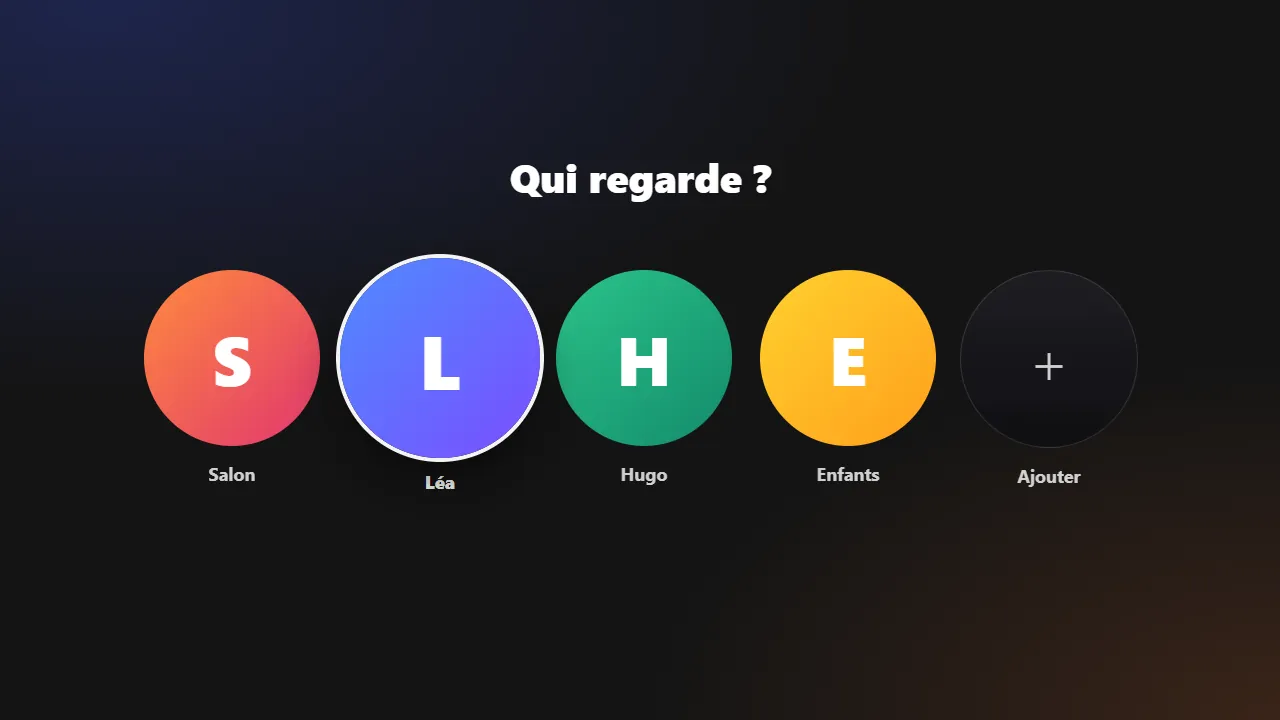
Turn it on in the Options of a channel that exists in FHD, HD and SD: LumenTV steps down a notch when the picture stops to load, then goes back up as soon as the network allows.
The screen switches to 50 Hz for channels and to the exact frame rate of the film for movies: motion stays smooth.
French, English, Spanish, Portuguese, Italian, German, Dutch, Turkish, and Arabic, right to left.
A quick search, with the results sorted into TV, Movies and Series.
If your provider has replay, the guide replays a past show, and a show that has already started restarts from the beginning.
A 4-digit code protects adult content and kids' profiles: without it, nobody gets in.
Hide the categories you don't care about, put “My channels” in your own order, and keep several subscriptions per profile.
Long-press OK, and the channel joins “My channels”. Movies and episodes pick up where you stopped.
In Movies, one row gathers this year's films already out on demand or on DVD/Blu-ray in your country that your subscription offers, with how long ago they came out. Only the ones you can watch show up. And a movie without a poster gets one with its name on it, instead of a gray box.
Press OK on an upcoming show in the guide, and LumenTV records it on the TV, even in standby. You can also keep the one you're watching, from its start, or pick a channel and a time by hand. Your recordings wait for you in their own tab, to watch like a movie.
On an Android phone or tablet, the same file opens with a touch interface: the TV, Movies, Series, Search and Settings tabs, and a full-screen player. Swipe up or down to change channel, double-tap left or right to go back or forward 10 seconds in a movie, and keep watching in picture-in-picture. Install it on your phone
During a Grand Prix, LumenTV shows on top of your channel the live standings, a driver's card, a duel, the team radios and the messages from race control. Free, and no account needed.
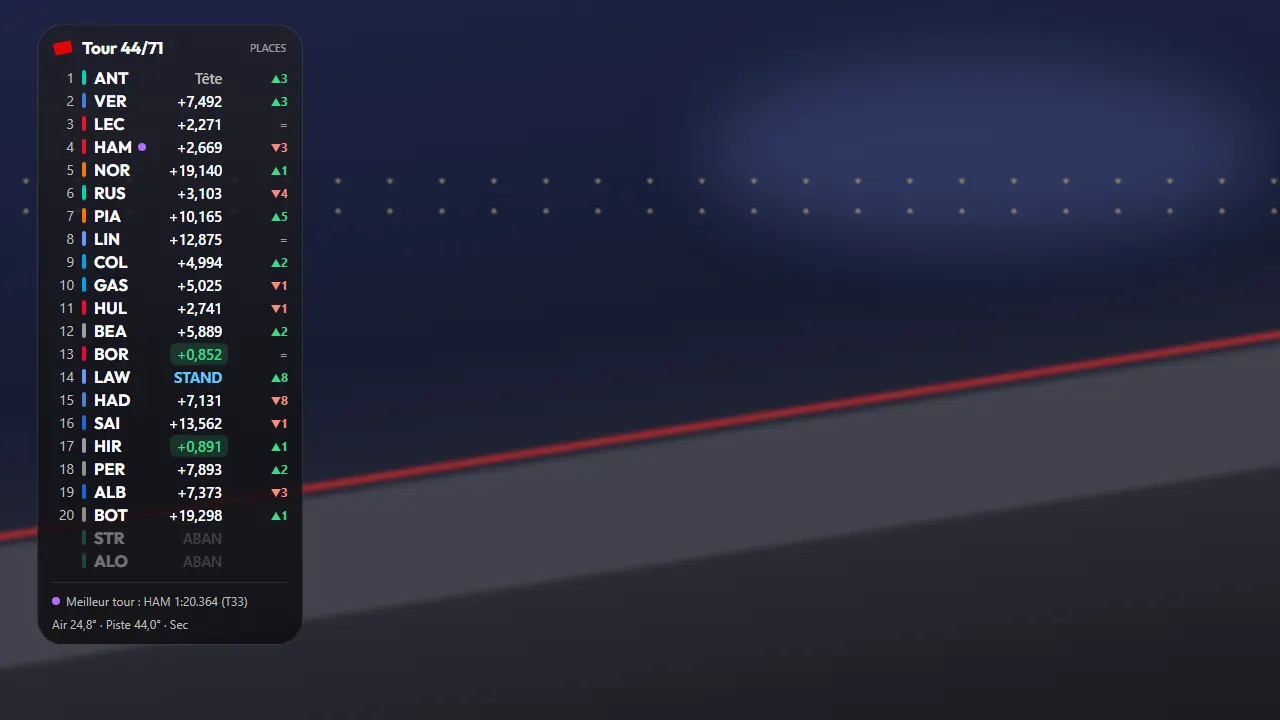
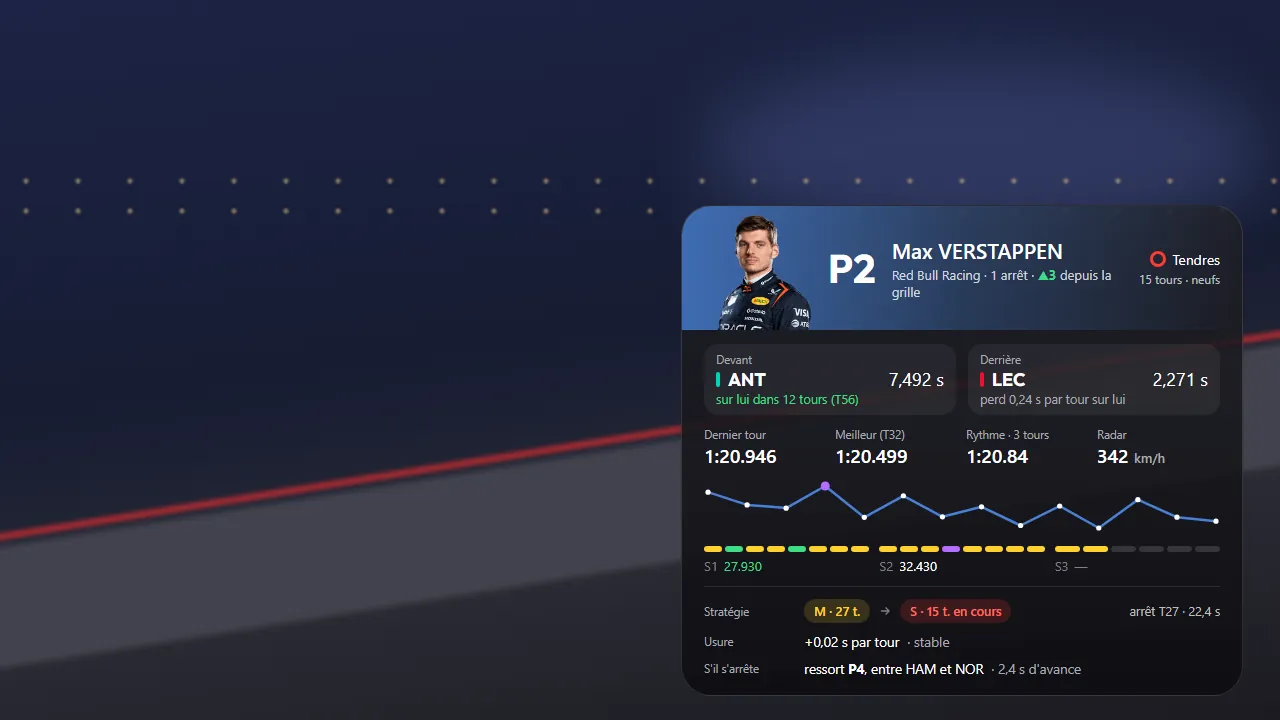
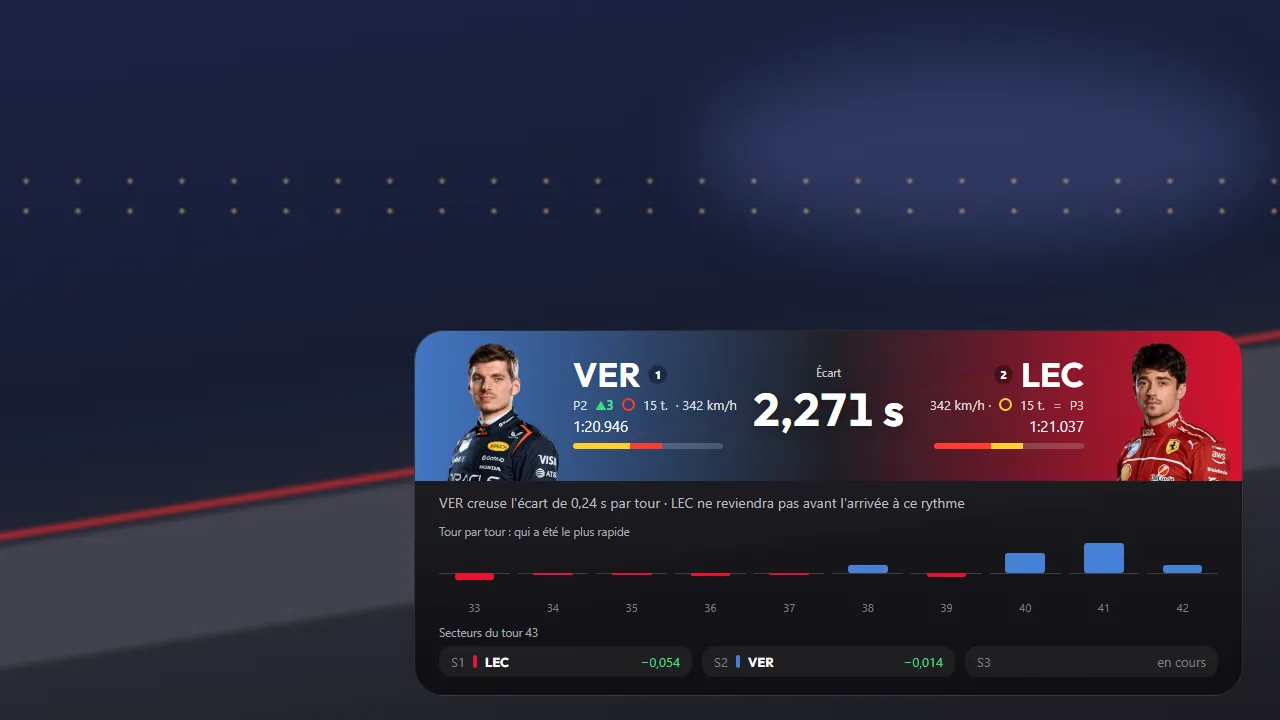
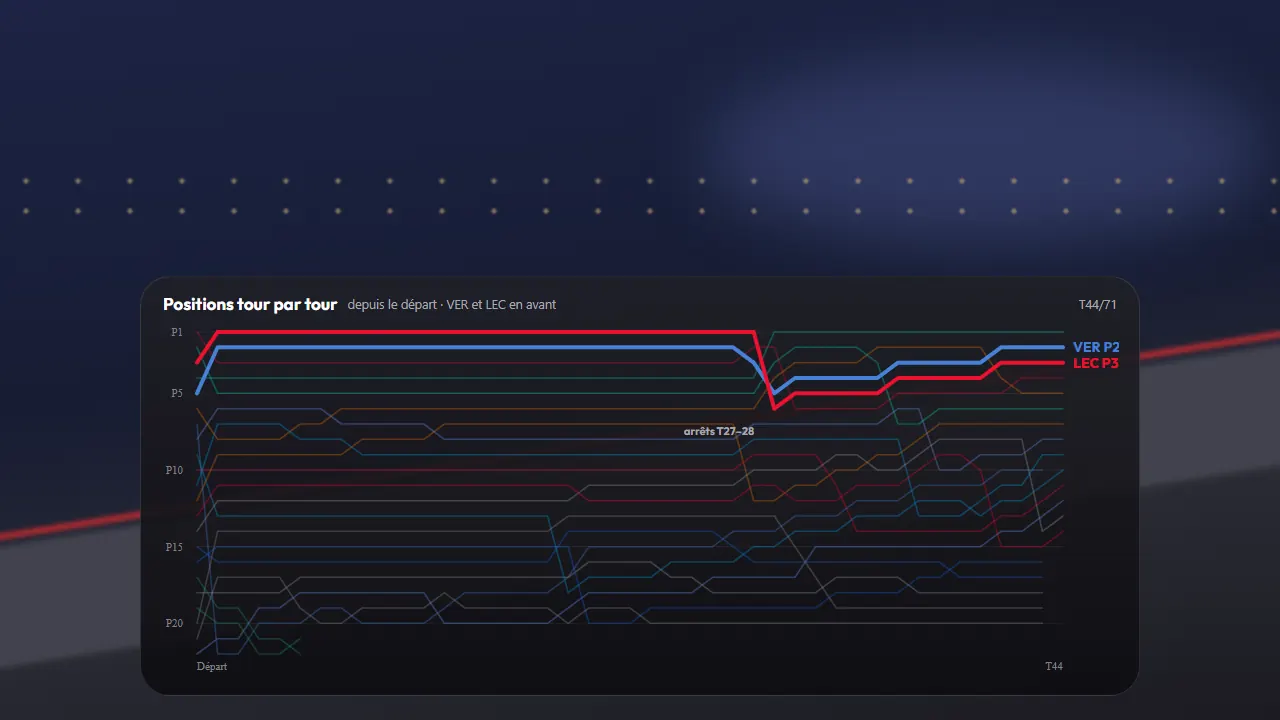
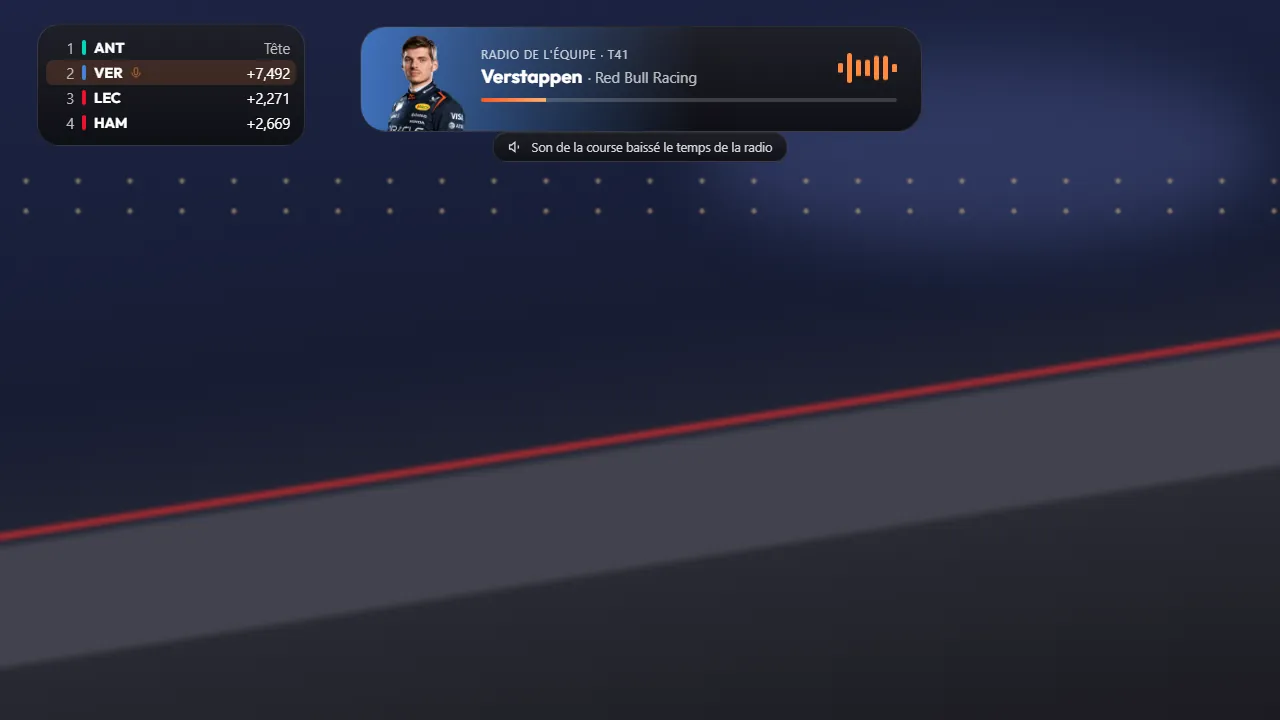
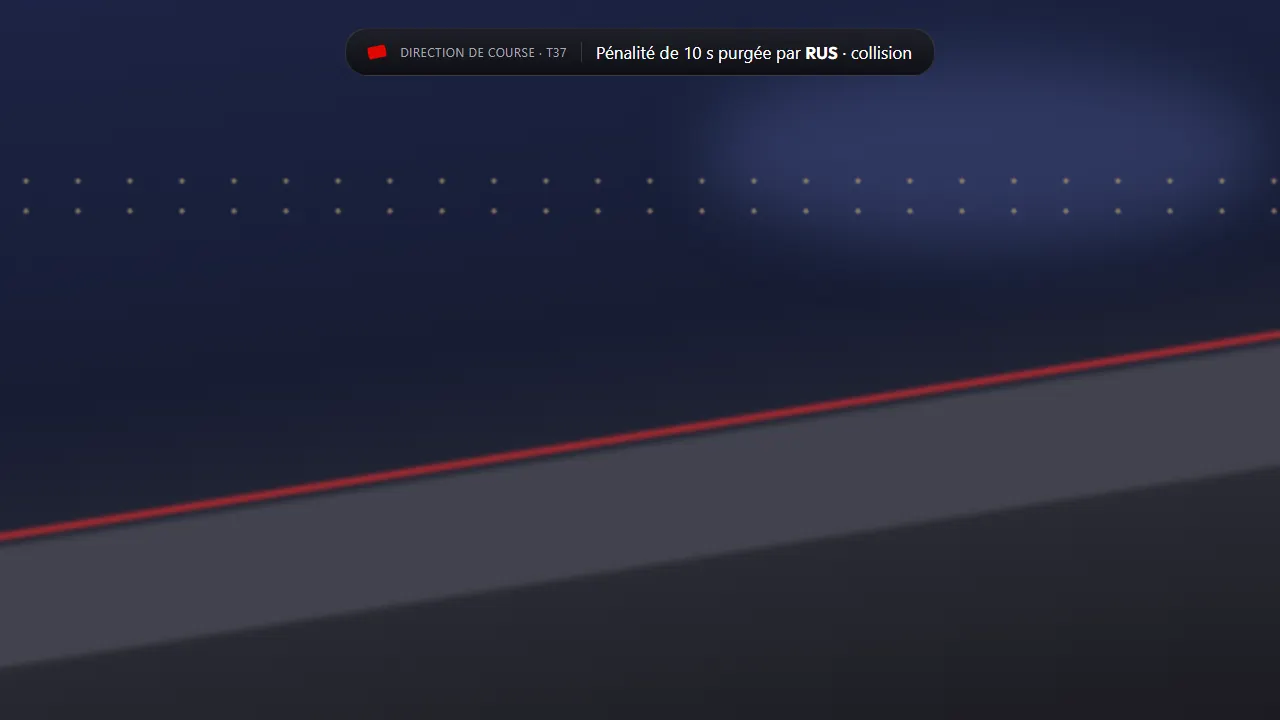
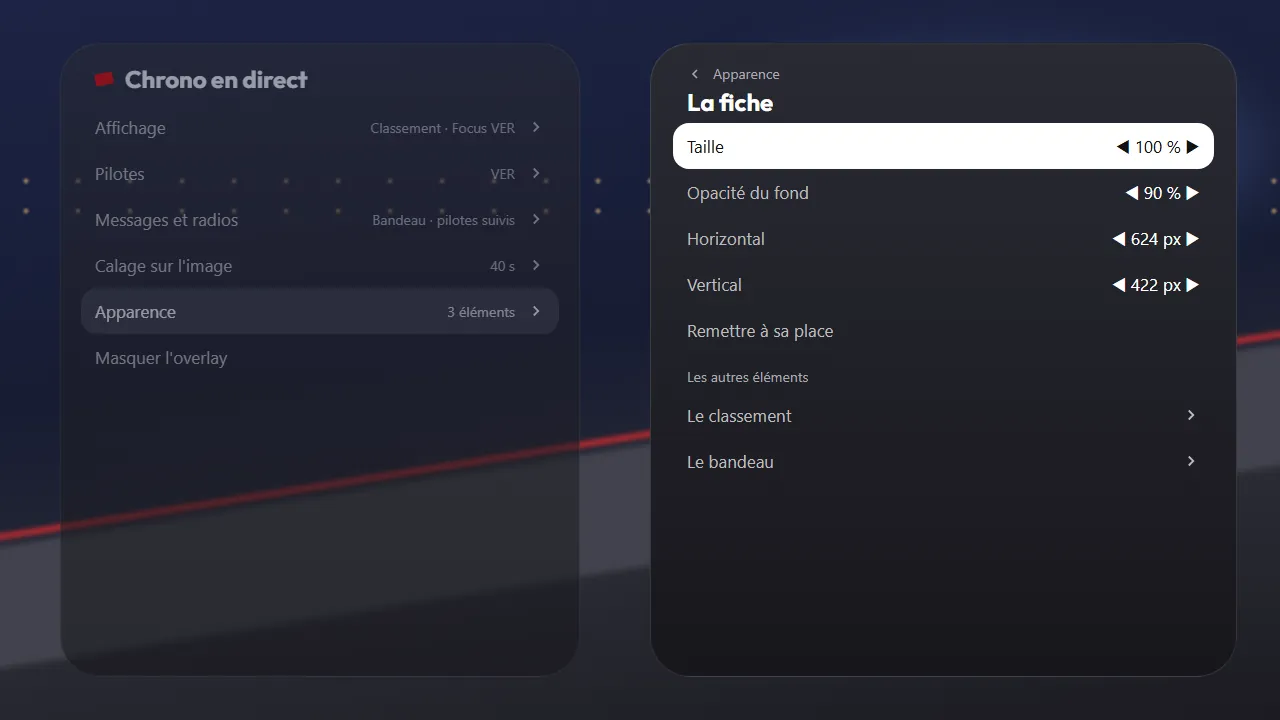
Your channel is often behind the track. Set that delay once, or press OK when the lap changes on screen: nothing shows before you've seen it.
The overlay never turns on by itself: you turn it on in the player Options, and it switches off when you change channel.
Pick the drivers you follow: their radios play by themselves, and they stand out in color in the chart.
No extra subscription, no Lumen account: the overlay works as soon as LumenTV is installed.
LumenTV is not affiliated with any championship, team or driver.
WindowsMac
Live TV, your movies and your series in a window, with mouse and keyboard, with your own subscription. For Windows and Mac.
Free. For Windows 10 and 11, and for Macs, with Apple silicon or Intel.
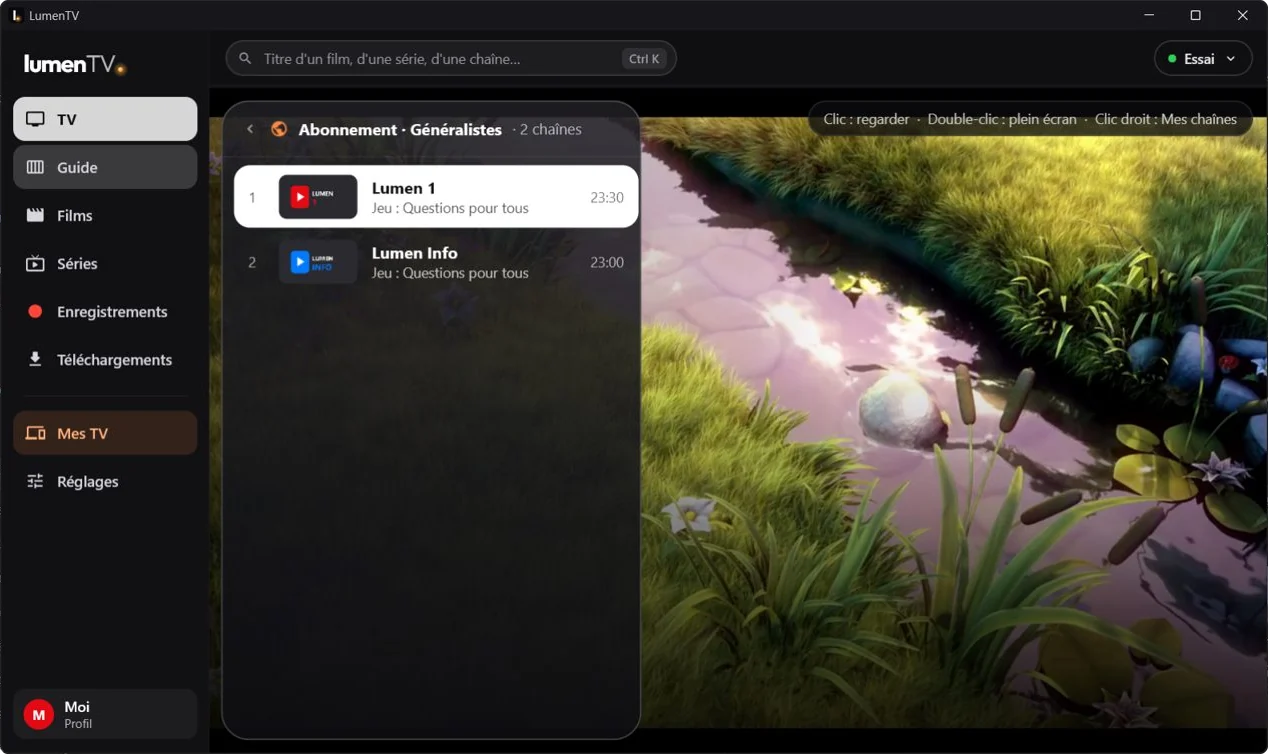
Click a channel and it's on: changing channels is almost instant. Double-click for full screen.
Every movie and every series has its own page, with its summary, its versions, its seasons and its episodes. You pick up where you left off, and when an episode ends the next one follows.
While you watch, choose the audio track, the subtitles and how they look (size, color, background), and the picture format.
A movie, an episode or a whole season is kept on the computer, in the folder you choose, to watch without a connection.
Your TV's home screen, clean and smooth. No ads, no recommendations: just your apps, and what you're watching.


Home: your LumenTV resume points and favorites on top, your apps in the glass dock.
No advertising, no suggested content. The home screen shows only your apps and your LumenTV content.
The focused app shows big at the top of the screen. For LumenTV, that's your resume points and your favorites, ready to play, in the profile you pick at the top of the screen.
Big landscape photos under a free license, the time and the weather in your city. Never a poster or an ad.
Put your apps in folders, and hide the ones you don't use.
On a Google TV television, each connected HDMI port has its own tile, with the device's name: “PlayStation 5”, one OK and you're there.
The time, sleep, sound, screen, Bluetooth and network, one button away from the home screen.
A 4-digit code locks the apps you choose: without it, they won't open.
The remote's Home button opens LumenUI instead of the Google TV home screen. Up to Android 12, one setting in LumenUI is enough; on Android 13 and later, and on Fire TV, you turn it on once with a computer or an Android phone: see how.
Free Just once, with a computer
Amazon doesn't allow replacing the home screen of its Fire TVs, and Fire OS only turns on an app's accessibility over ADB. LumenUI installs there anyway, and its Home button turns on once, in three commands, from a computer or an ADB app on an Android phone.
Amazon's home screen stays. This setting brings LumenUI back each time you press Home, but it doesn't remove Amazon's home screen: Fire OS protects it, and no command, not even over ADB, can turn it off. It stays installed, shows for about 2 seconds before LumenUI each time you press Home, and its menus are still there. At start-up, the Fire TV opens LumenUI straight away, and the Home button keeps working, even after a restart.
No developer options? Open Settings › My Fire TV › About and press your Fire TV's name seven times in a row. The Fire TV needs Fire OS 7 or newer. The full steps, with the commands to copy.
We timed LumenTV and LumenUI against Play Store apps, on the same TV, gesture by gesture. Nothing is estimated.
The time it takes for the home screen to appear when you go back to it. The shorter, the better.
Almost 2 times faster than the Google TV home screen, 1.6 times faster than AT4K and 2.3 times faster than Projectivy. Version 0.15 stays at the level of 0.12 (71 ms versus 69, within the measurement margin). A tenth of a second is the blink of an eye: LumenUI is there before it.
The memory taken by the home screen. What it doesn't take stays for your apps.
Out of 100 frames shown while you browse the home screen with the arrow keys, how many arrive late.
Two everyday gestures, measured on the same TV.
Open the app, until it's ready to use
Go back to the app, from the home screen
Open: with the app closed, from the press until the channel list is on screen (the movies, for Zen IPTV); a startup logo doesn't count. Go back: with the app still in memory, nearly 3 times faster than Zen IPTV.
The same gestures, on the same Streamer.
LumenUI: home screen display
80 ms69 ms
from 0.11 to 0.12
LumenTV: going back to the app
0.12 s0.06 s
from 0.69 to 0.75
LumenTV: switching channels
1.2 s0.9 s
from 0.69 to 0.73
LumenUI: startup
1.38 s0.75 s
LumenTV: missed frames while browsing channels
3514
over 18 arrow presses
LumenUI at rest
0%
processor use: nothing is redrawn, except the clock once a minute.
How? A built tile stays ready off screen, blurs and gradients are painted once instead of on every frame, and in LumenTV the channel preview keeps its video ready instead of recreating it on every arrow press.
Measured on a Google TV Streamer (Android 14, 4K picture at 50 Hz), using Android's own tools, with the remote, three to five runs per gesture: LumenTV 0.75, LumenUI 0.15, Projectivy Launcher, AT4K Launcher and Zen IPTV 2.1.0 on November 14, 2026; LumenTV 0.73 and LumenUI 0.12 on November 7, 2026; LumenTV 0.69, LumenUI 0.11 and the Google TV home screen on November 3, 2026. All LumenTV and LumenUI figures are published, even when they go backwards or another app does better. Memory: what the app takes up, including the part Android has compressed. LumenUI only replaces the home screen: the system, the Play Store and your apps don't change.
The Lumen account brings your TVs and your phones together. Lumen+, the paid option, adds encrypted sync.
Free Lumen account
All the TVs and phones on your account, with a dot when a TV is on. You rename them or remove them in one gesture. And if you want, two-factor authentication: a code from your authenticator app at every sign-in.
To add a TV: in LumenTV, Settings › Sync › “Add this TV to my account”, then scan its QR code with your phone, or type its code in “+ Add a TV”. On a phone or tablet, sign in in LumenTV: the device adds itself.
Create my accountPaid Lumen+
€1.99/month · €19.99/year · €49.99 lifetime, no trial
Launch offer: €39.99 lifetime for the first 10 ·
Payment through Stripe, in “My subscription” on your account. Terms of sale
Upgrade to Lumen+LumenTV and LumenUI stay free and complete, with or without an account.
No mandatory account, no ads, no tracking. Here's the path your IPTV credentials take, without an account and with Lumen+.
Free version
Lumen+ Paid option
Stripe Lumen+ payment goes through Stripe: your card never goes through Lumen.
On the TV: ten minutes, just once, with the remote and your phone. On a phone or tablet: a few minutes, see below. After that, LumenTV downloads its updates by itself.
On a computer, Windows or Mac: see below.
On your TV, open the Play Store (the Appstore on a Fire TV), search for “Downloader” (the orange app by AFTVnews) and install it. Open it once and accept what it asks for.
Go to Settings › Apps › Security & restrictions › Unknown sources, then turn on Downloader.
Can't find “Unknown sources”? Turn on developer mode first: Settings › System › About, then press “Android TV OS build” seven times in a row. Then go back to the step above.
On a Fire TV: Settings › My Fire TV › Developer Options › Install unknown apps, then turn on Downloader. No “Developer Options”? Open Settings › My Fire TV › About, press the name of your Fire TV seven times in a row, then go back.
In Downloader, select the address field and type this code, using the remote's number keys or the on-screen keyboard:
4550538
Confirm with “Go”. Downloader shows an information page from AFTVnews, its publisher, for a few seconds, then the download starts by itself.
You can also type the address instead, in the same field: lumen-tv.app/tv.
Choose “Install”, then “Open”. Downloader then offers to delete the file: you can accept, you don't need it anymore.
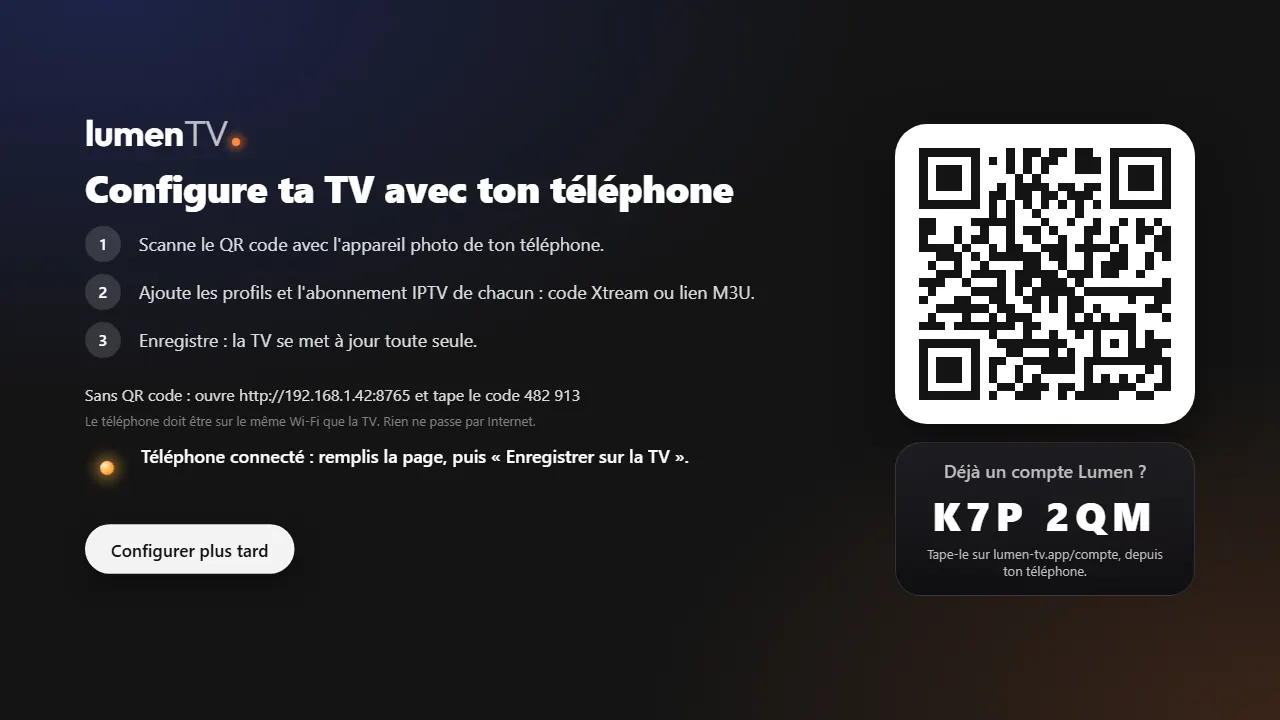
LumenTV shows a QR code. Scan it with your phone's camera, connected to the same Wi-Fi as the TV. On the page that opens, add one profile per person and your subscription (Xtream code or M3U link), then “Save to the TV”. You're ready.
Android 7.1 or newer. It's the same file as for the TV: on a touch screen, LumenTV opens with its finger-friendly interface.
Open lumen-tv.app on your phone and tap “Download LumenTV”, higher up on this page. If your browser warns that this type of file may be dangerous, confirm the download, then open the file.
The first time, Android blocks the installation and offers to open its settings: turn on “Install unknown apps” for your browser, go back, then choose “Install”.
Open LumenTV and choose “Add my subscription”: an Xtream code or an M3U link, no account. Or choose “Sign in to my Lumen account”: your email, your password, and the code from your authenticator app if two-factor authentication is on. With Lumen+, your profiles and their subscriptions arrive right away.
LumenTV downloads its updates by itself. When a version is ready, tap “Update” in Settings.
Free. Pick your system: the file contains the app, its video player and everything it needs.
Version
LumenTV for Windows
Windows 10 or 11, 64-bit
Windows protected your PC.
More info.
Run anyway. Installing doesn't need administrator rights, and LumenTV appears in the Start menu.
Why: this installer isn't signed with a certificate yet, and Windows is wary of a program it sees for the first time. Only download it here, from lumen-tv.app.
LumenTV for Mac
Mac with Apple silicon or an Intel processor, macOS 11 or later
Open.
The app is signed and checked by Apple. Which one: Apple menu › About This Mac. It says Chip
(Apple M1, M2…) or Processor
(Intel).
No. LumenTV is a player: it includes no channels, no movies, no series. It plays the IPTV subscription you already have, from the provider of your choice.
They're examples. The movies are free short films from Blender Studio; the channels, apps and series were made up for the example. In LumenTV, you see the channels, movies and series of your IPTV provider. An example of a legal source: with a Freebox and the TV option, add the playlist http://mafreebox.freebox.fr/ (it only works on your Freebox's network).
An IPTV subscription with an Xtream code (server address, username and password) or an M3U link. You can add several, and one per profile.
Google TV or Android TV televisions and boxes running Android 7.1 or newer, like the Google TV Streamer. Amazon Fire TVs running Fire OS 6, 7 or 8, for LumenTV: Fire TV Stick (3rd generation and Lite), Fire TV Stick 4K and 4K Max, Fire TV Cube… The older ones, running Fire OS 5 (Fire TV Stick from 2016 and before), can't install it: the version shows in Settings › My Fire TV › About. Models running Vega OS, like the Fire TV Stick 4K Select, no longer accept Android apps. And Android phones and tablets running 7.1 or newer: the same file opens there with a touch interface. LumenUI, the home screen, installs on Google TV and Android TV televisions running Android 8 or newer, and on Fire TVs running Fire OS 7 or 8: there, its Home button turns on once with a computer (see how). There's no version for iPhone, iPad or computer.
Your Fire TV or box is too old for LumenTV: it needs Android 7.1, which means Fire OS 6 or newer on a Fire TV. The version shows in Settings › My Fire TV › About. If your device is recent enough, the download was probably cut off for lack of space: free up some memory and try again.
Yes. The codes 4550538 (LumenTV) and 8703252 (LumenUI) are short links from AFTVnews, the publisher of Downloader: its page shows for a few seconds, then LumenTV downloads from lumen-tv.app, or the LumenUI page opens. You can also type the address lumen-tv.app/tv or lumen-tv.app/ui directly, which always work.
Yes. LumenTV, LumenUI and the Lumen account are free. Lumen+, the paid option for encrypted sync of profiles and the LumenUI dock, sending to the TV and remote updates, costs €1.99 a month, €19.99 a year or €49.99 lifetime, no trial. Launch offer: lifetime at €39.99 for the first 10. LumenTV stays complete without it.
No. LumenTV and LumenUI work without an account. The free Lumen account is for finding your TVs and your phones on a single page; Lumen+ adds encrypted sync.
On the TV, in LumenTV's storage: nothing goes out to the internet, and each profile has its own. One hour in HD takes 2 to 4 GB. LumenTV always leaves at least 2 GB free, or 10% of the storage: beyond that, it stops recording, and it never deletes anything by itself. An update of LumenTV keeps your recordings; uninstalling it erases them.
With a single-screen subscription, the TV only receives one channel at a time: if someone is watching another channel when a recording starts, LumenTV asks, and with no answer after 30 seconds, the recording is skipped.
With Lumen+, add each TV to your account: in LumenTV, open Settings › Sync › “Add this TV to my account”, then scan its QR code with your phone, or type its code in “+ Add a TV” on lumen-tv.app/compte. That's all: sync turns on by itself, and the TV receives the key from your phone or from another of your TVs, then shows your profiles, their subscriptions and their photos. To keep a TV separate, choose “Stop sync on this TV” in the same menu. On a phone or tablet, it's even simpler: in LumenTV, choose “Sign in to my Lumen account”, at first launch or in Settings › Lumen account, and the device adds itself to your account.
Without an account, nowhere: it stays on your TV or your phone. Your profiles, your favorites and your subscriptions are saved in the app. With a Lumen account, the server also knows your email address, your first name and the list of your devices. With Lumen+ sync, it also keeps your profiles and their photos, encrypted by LumenTV: it can't read your subscriptions.
Phone lost or wiped: sign in on another one with your password, and it finds your account key by itself. Then remove the old one in “My devices”. If two-factor authentication is on and its app was on that phone, use one of your backup codes.
Forgotten password: there's no email reset yet, write to us at [email protected]. With your new password, a device that still has the key, a TV or LumenTV on another phone, gives it back to your phone. Otherwise, type your recovery key if you created one. With no device that has the key and no recovery key, you have to enter your subscriptions again: we can't recover them.
Yes: HDR10, HLG, Dolby Vision, Dolby Digital and Digital+ (Atmos included), DTS and TrueHD. LumenTV sends them as they are to your TV and your soundbar. The channel or movie has to be in HDR or Dolby itself, which is rare for live TV, and your box, your TV and your audio system have to support it too. Otherwise, LumenTV switches to a standard picture by itself, or decodes the sound so there's always some.
LumenTV sets the screen to 50 Hz for TV, and to the film's frame rate during a movie, to avoid judder. On some boxes, this change also alters the colors sent to the TV. To compare, open the Options during playback (right arrow), then Screen, and turn off “Match frame rate”.
Your subscription's server refuses the connection. Some providers only accept the apps they know: LumenTV then presents itself as a common player, and remembers it. If the message stays, check that your subscription is active, that no VPN is on on the TV or the box, and that your provider doesn't require its own app.
Since LumenTV 0.71, movies are also recognized with providers that organize them differently. If some are still missing, open Settings: the “Movies” line of your subscription says how many LumenTV found. At 0, write to us at [email protected] and say whether you use an Xtream code or an M3U link.
No. LumenTV works with the Google TV home screen. LumenUI adds an ad-free home screen, which shows your LumenTV resume points and favorites as soon as you turn the TV on.
In LumenUI, open ⚙ and turn off “Open LumenUI with the Home button”. If Android asks you for the home screen, choose Google TV. You can also uninstall LumenUI: nothing else was changed.
LumenUI was probably installed with Downloader. Since Android 13, Android then blocks its accessibility service, the one for the Home button, and Google TV has no setting to lift this block. One ADB command lifts it, just once, from a computer or an ADB app on an Android phone: the steps are on lumen-tv.app/ui.
Check that LumenTV is installed and set up, and that you've started a movie or made a channel a favorite. If LumenUI was installed before LumenTV, the Top Shelf tells you so: uninstall LumenUI, then reinstall it with Downloader (code 8703252). On Android 13 or newer, then run the command from lumen-tv.app/ui again for its Home button.