


Download

WindowsMac

LumenTV on your computer

Live TV, your movies and your series in a window, with mouse and keyboard, with your own subscription. For Windows and Mac.

Free. For Windows 10 and 11, and for Macs, with Apple silicon or Intel.

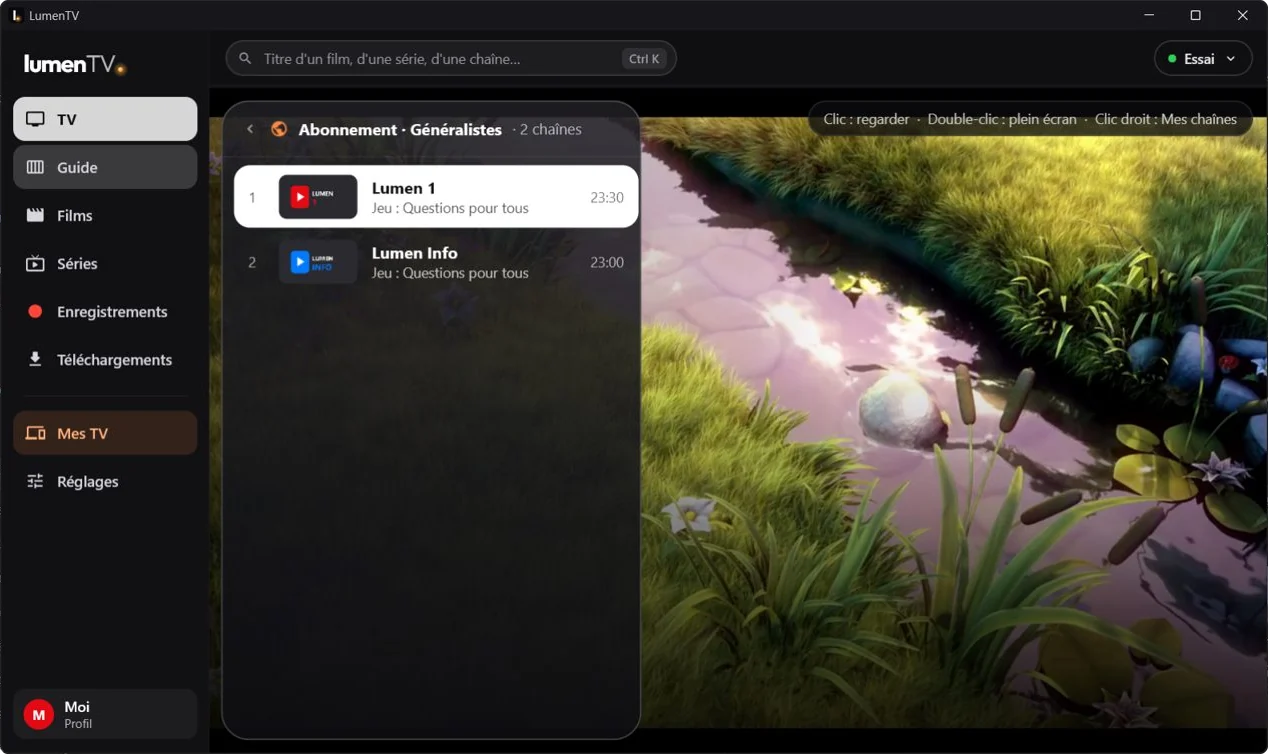
LumenTV on Windows, TV tab: the menu on the left (TV, Guide, Movies, Series, Recordings, Downloads, My TVs, Settings), and the list of example channels Lumen 1 and Lumen Info over the live channel.

LumenTV, in a window.

The sections of the TV app (TV, Guide, Movies, Series, Recordings, Downloads), with mouse and keyboard.

Live TV, without the wait

Click a channel and it's on: changing channels is almost instant. Double-click for full screen.

  • Live pause: pause a channel, go back up to an hour, then return to live whenever you like.
  • Program guide: your channels on a grid. Click a show that's on now to open its channel; click an upcoming show to schedule its recording.
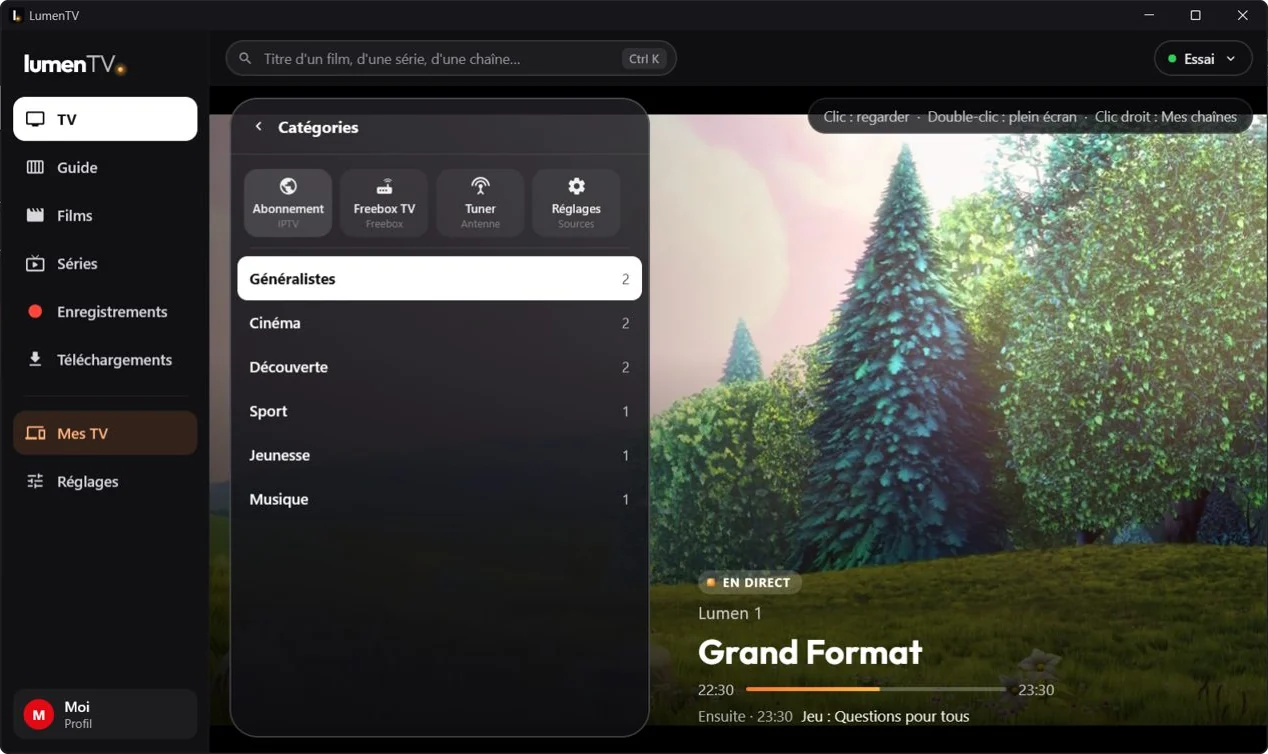
The TV tab: the sources (subscription, Freebox TV, tuner) above the list of categories, and the show that's on now on the example channel Lumen 1.

Movies and Series, neatly sorted

Every movie and every series has its own page, with its summary, its versions, its seasons and its episodes. You pick up where you left off, and when an episode ends the next one follows.

  • The categories pane, to the left of the rows: a click takes you to a category, a right-click makes it a favorite.
  • Search, always at the top of the window: one word, and the channels, movies and series that match.
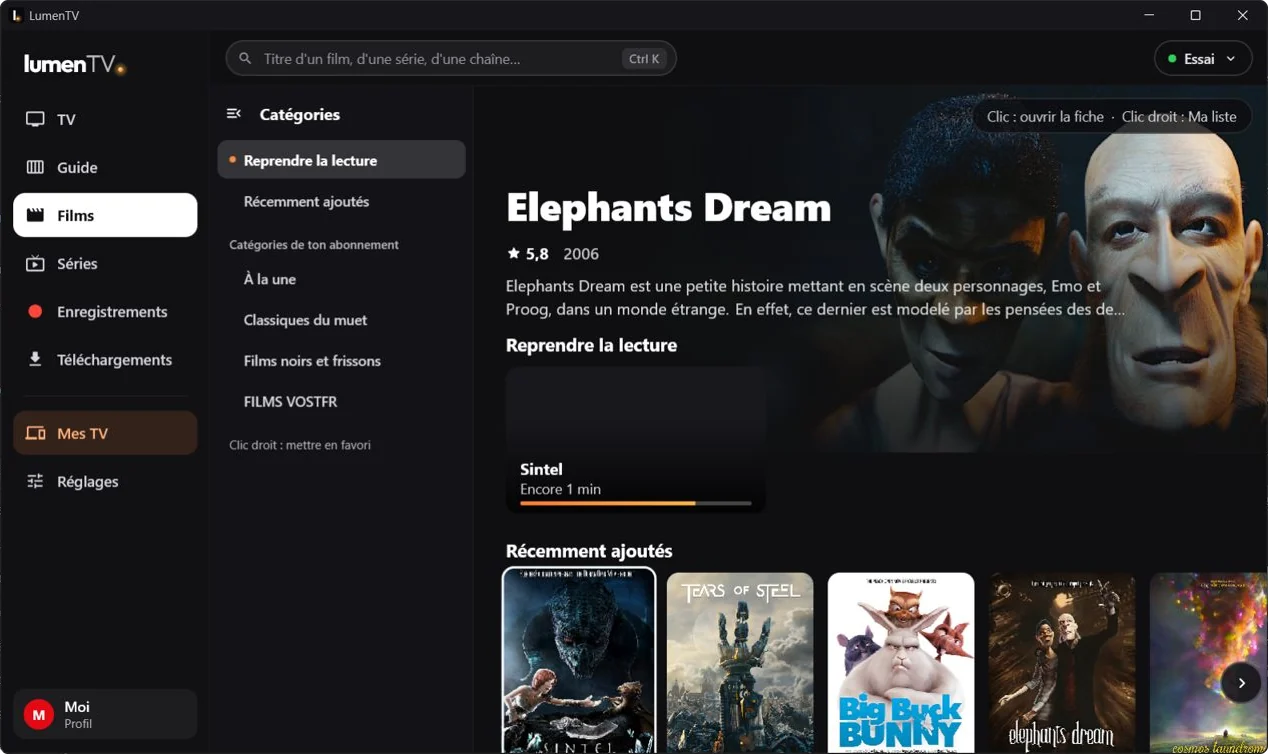
The Movies tab: the categories pane on the left, Elephants Dream big, the row to resume watching and the recently added row, with free films from Blender Studio.

A player with all its options

While you watch, choose the audio track, the subtitles and how they look (size, color, background), and the picture format.

  • Record this show: a button in the player keeps what you're watching.
  • A dropout? A panel tells you whether it comes from your connection, the internet or the stream.
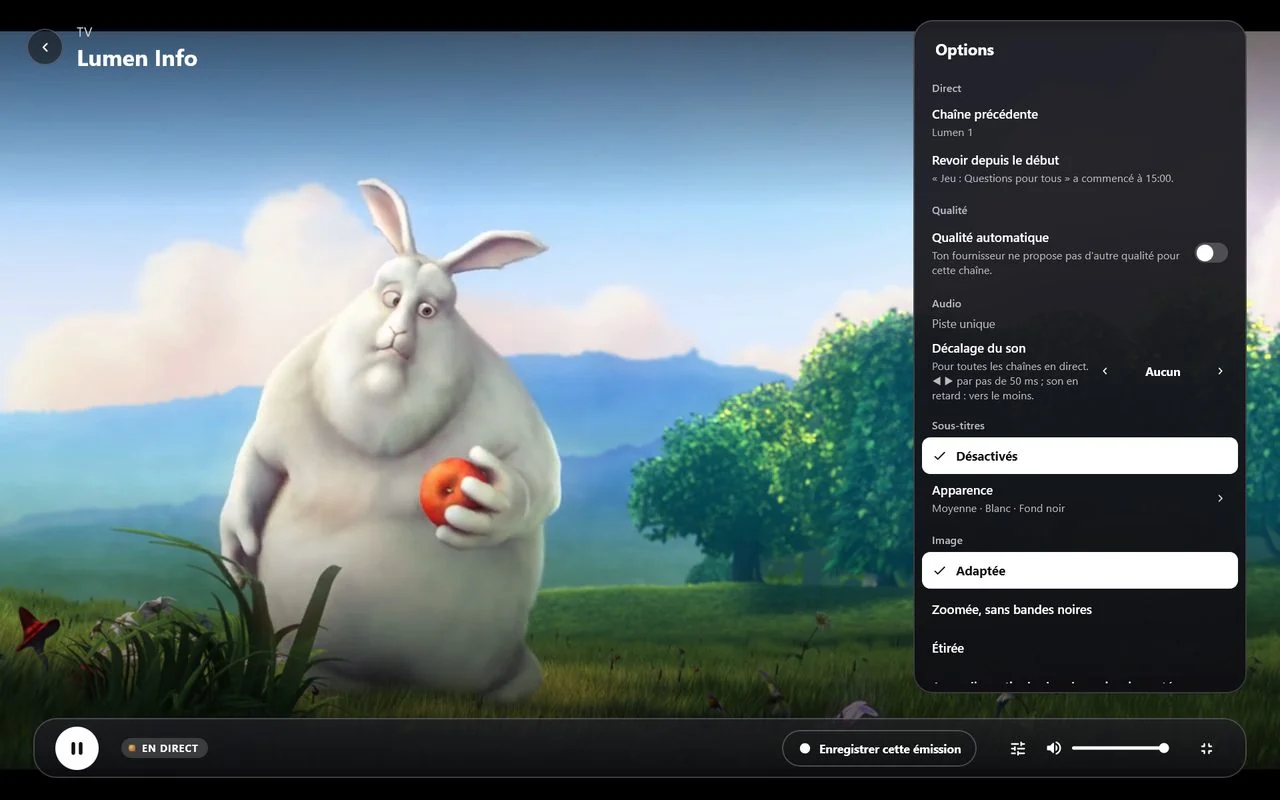
The full-screen player on an example channel, with the Options panel: quality, audio, sound offset, subtitles and their appearance, picture format, and the button to record the show.

Download, watch offline

A movie, an episode or a whole season is kept on the computer, in the folder you choose, to watch without a connection.

  • An interrupted download picks up where it stopped.
  • Downloads keep going as long as LumenTV is open.
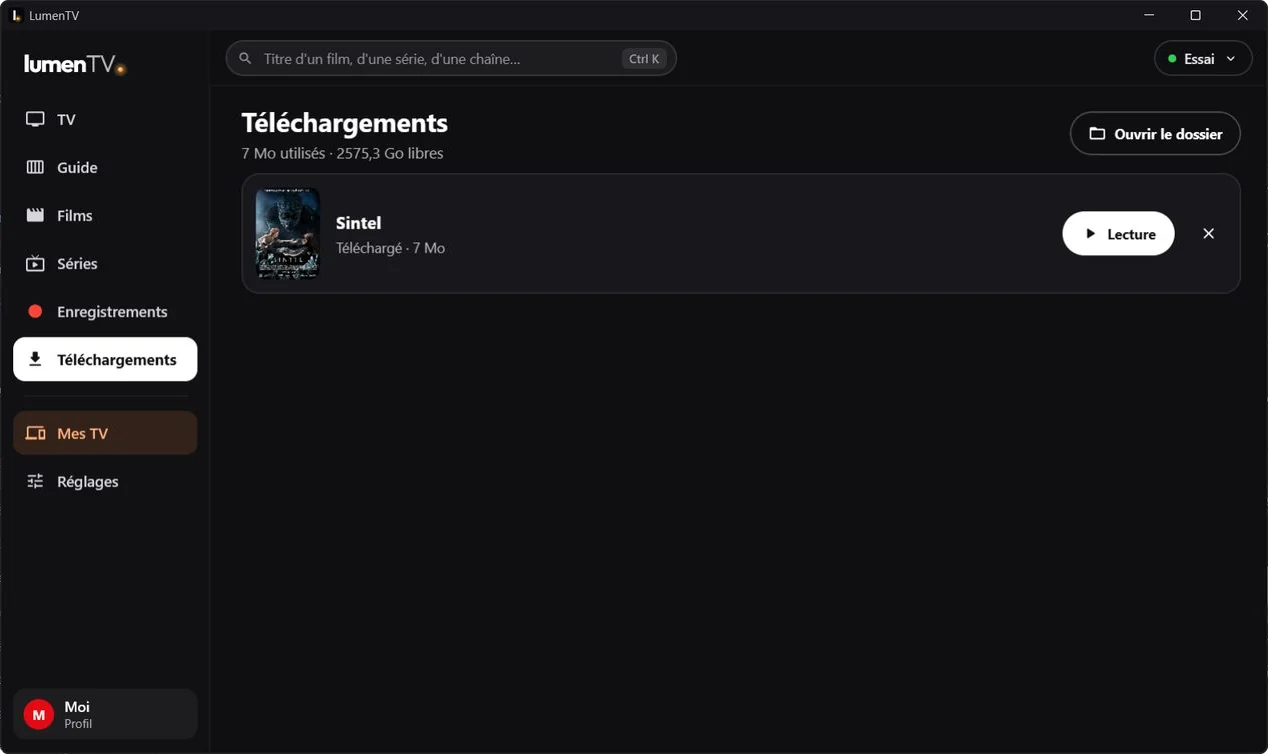
The Downloads section: the movie Sintel, downloaded, with the buttons to play it and to open the folder.

The channels, movies and series shown here are examples. What you see in LumenTV depends on your IPTV provider. The movies are free short films from Blender Studio: see Image credits. The screenshots show the app in French; it also speaks English.

And also

Record a show

From the guide, from the player, or by picking a channel and a time. The computer records as long as LumenTV is open, and your recordings play like a movie.

My videos

Your movies, series and family videos from Jellyfin, Emby, a DLNA server or your NAS's shared folders, right in Movies and Series.

Freebox TV and network tuner

On a Freebox's network, the Freebox TV channels; with a network tuner, the antenna channels. These sources join your subscription in the TV tab.

Profiles and parental control

One profile per person, with “Who's watching?”. A 4-digit code protects adult content and kids' profiles.

Lumen account

Sign in with your email and your password. With Lumen+, your profiles and your subscriptions are synced across your devices, end-to-end encrypted.

My TVs

From the computer, install or update LumenTV and LumenUI on the TVs in your home (Android TV, Google TV, Fire TV), once their debugging is turned on. LumenTV first shows what it is about to do: nothing is sent without your go-ahead.

Live timing

During a race, the standings, a driver's card or a duel appear on top of your channel's picture.

In nine languages

French, English, Spanish, Portuguese, Italian, German, Dutch, Turkish, and Arabic, right to left.

How it works

  1. Install LumenTV

    Nothing else to install: the video player is inside the app.

  2. Add your subscription

    On first launch, enter your Xtream code or your M3U link. Or sign in to your Lumen account: with Lumen+, your profiles and your subscriptions arrive from your other devices.

  3. Watch

    Your channels, your movies and your series are waiting in their tabs.

LumenTV provides no channels, movies or series. It's a player, to use with your own subscription.

Download LumenTV for computer

Free. Pick your system: the file contains the app, its video player and everything it needs.

For your TV or your phone, LumenTV is already here: install it.

LumenTV for Windows

Windows 10 or 11, 64-bit

Coming soon

If Windows warns you

  1. Open the downloaded file. Windows may show Windows protected your PC.
  2. Click More info.
  3. Then Run anyway. Installing doesn't need administrator rights, and LumenTV appears in the Start menu.

Why: this installer isn't signed with a certificate yet, and Windows is wary of a program it sees for the first time. Only download it here, from lumen-tv.app.

LumenTV for Mac

Mac with Apple silicon or an Intel processor, macOS 11 or later

Coming soon Coming soon

On Mac

  1. Open the downloaded file and drag LumenTV into the Applications folder.
  2. Launch LumenTV. The first time, macOS reminds you the app comes from the Internet: click Open.

The app is signed and checked by Apple. Which one: Apple menu › About This Mac. It says Chip (Apple M1, M2…) or Processor (Intel).

Video is decoded by VLC (libVLC), built into the app. LumenTV checks for updates on its own; you install them from Settings › App.